The Project Editor
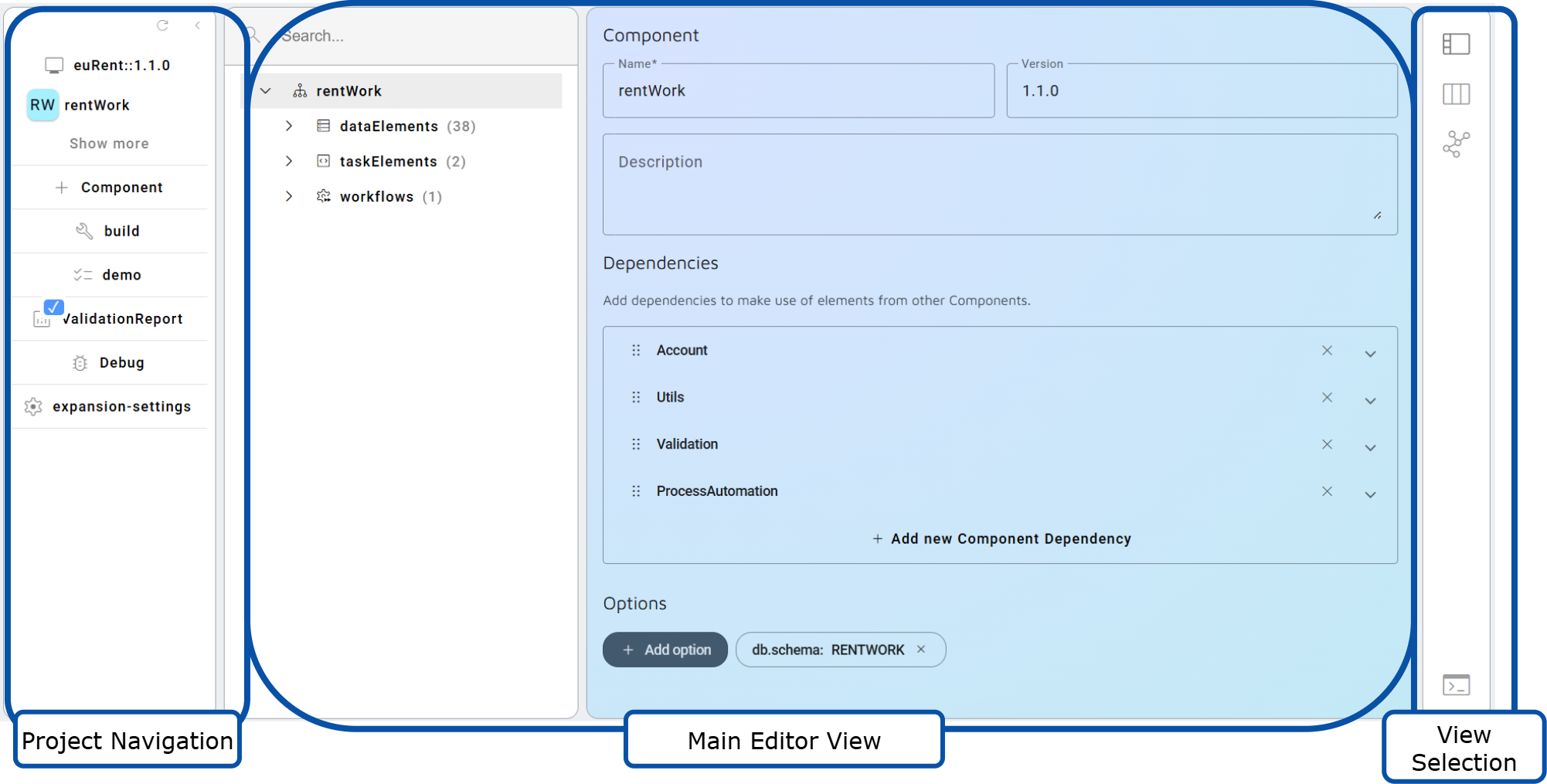
When opening a project, the Project Editor appears. This view provides an environment for editing your project model, and maintaining its lifecycle.
- Left Panel = Project Navigation
- Right Panel = View Selection
- Center Panel = Main Editor View
Project Navigation
The Project Navigation Panel on the left enables easy navigation across different aspects of your project. It provides access to project aspects and additional views through plugins.
- Programs & Modules: The panel displays the main Program (ApplicationApplicationThe overarching model container grouping all components, domain logic, and configurations for an enterprise solution. for NS MIS) along with its modules (Components for NS MIS). The navigation panel can also show create / add buttons for the modules, which are provided via a plugin.
- Build: The build tab provides access to the project commands. You can expand, harvest, build, and run the NSScripts.
- ExpansionSettings: The ExpansionSettings tab allows you to configure the expansion resourcesExpansion Resource (ExpansionResource). A reusable resource bundle containing expanders and features that provide specific application capabilities, defined in the expansion settings and added to the classpath during expansion., the profile, and tags of your project.
- Plugins: As mentioned, plugins can extend the navigation with extra views, offering functionalities like build management or displaying validation reports.
View Selection
On the right, you can find buttons to switch to other views for the central panel. These options are linked to the selected view in the navigation panel, meaning they either show different content or the options differ all together.
Main Editor View
The central area can displays various views; a tree view of the model, detail views, diagrams, or a 3-pane. In this main view, you can navigate through the model hierarchy and edit elements.
In the tree view, right-click on any element in the tree view to add, delete, or perform other actions. Alternatively, you can use the three-dot button that appears when you hover over an element.
Use the search bar to filter elements by a specific search term. For example, typing "user" will display elements with "user" in their name or in any of their fieldsFieldA property of a DataElement expanded to a database column and user interface input element..
When creating a new element, the 'save' button will add it to the model. When editing, changes will update the model automatically.
Various views and tabs in the user interface are provided by plugins. Some parts of the model may thus require you to install additional plugins. The most standard plugins are discussed here.