Managing Projects in the µRadiant
The µRadiant has the ability to initialize new NS projects, to import NS projects, and to restructure them.
When starting the µRadiant, the first page you see serves as a project navigation. From here,
there are two options: Import Project ... and Initialize Project ... (also accessible via navigation menu).
This developer page helps you navigate both options.
Project Initialization
When you want to initialize a project in the µRadiant, you will have to do following steps:
-
Click on
Initialize Project ...on start screen or in the navigation menu (New project>Initialize Project) -
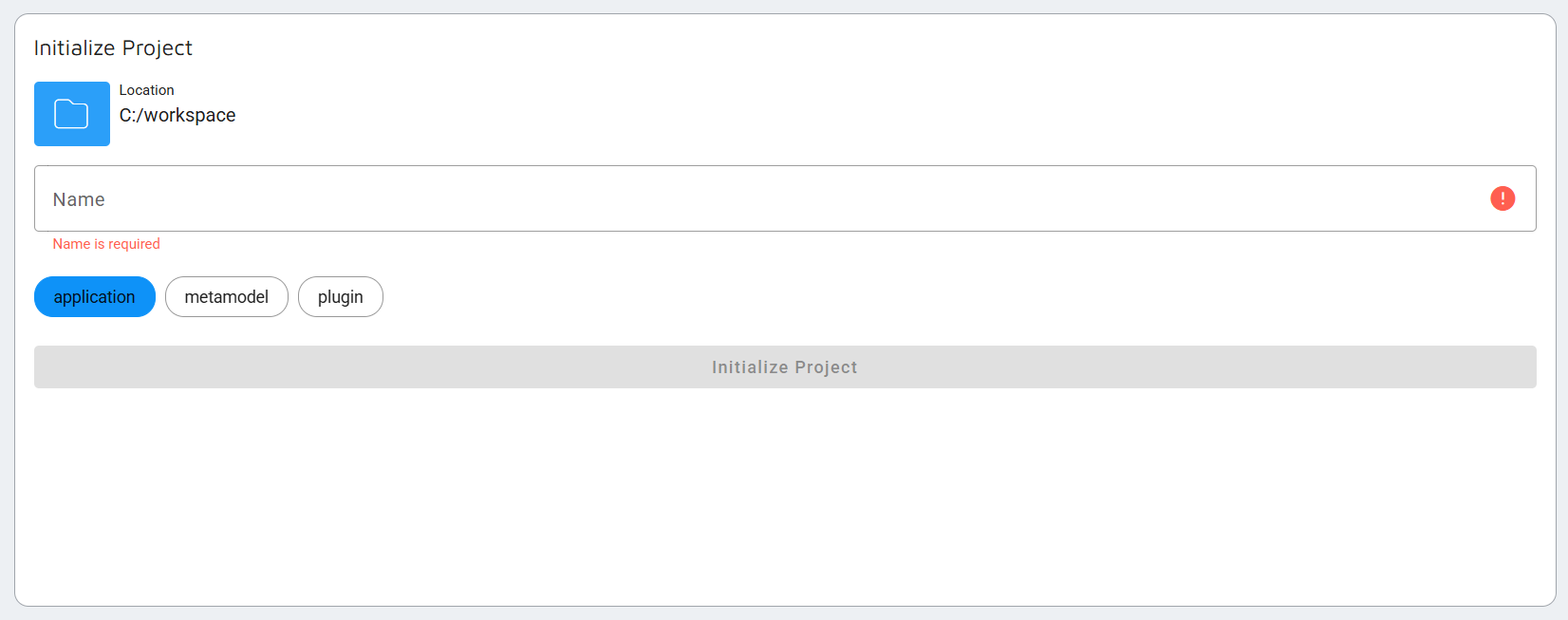
You will see the following form where you can define:
- Location of the project on your local device
- What artifactArtifactA build or deployment result, such as a Docker container image or Java archive, produced by a software project. you want to build (toggle: applicationApplicationThe overarching model container grouping all components, domain logic, and configurations for an enterprise solution., metamodel, plugin)
- The name of the artifactArtifactA build or deployment result, such as a Docker container image or Java archive, produced by a software project.
-
When you click on "Initialize Project", a new form will show with parameters specific to the type of artifactArtifactA build or deployment result, such as a Docker container image or Java archive, produced by a software project. you chose to build.
Importing Projects
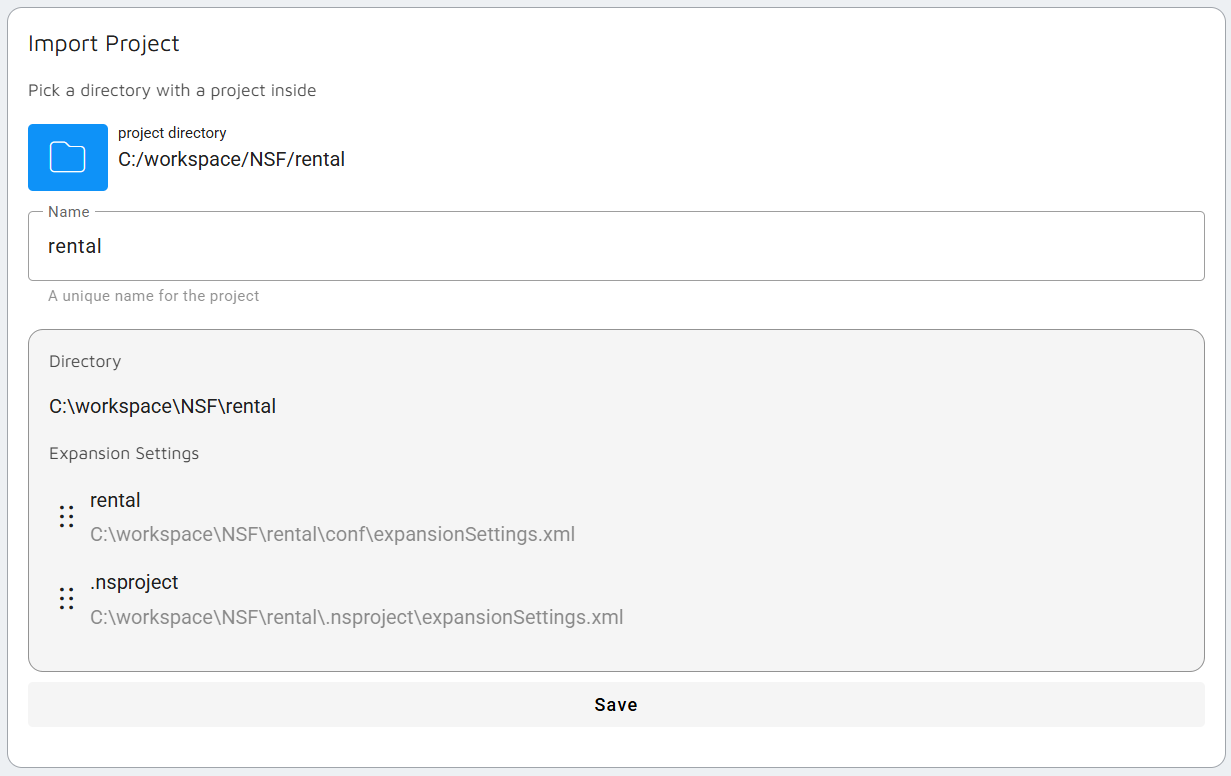
When you don't want to initialize a new project, but want to view or model in an existing project, you can import it.
- Click on
Import Project ...on start screen or in the navigation menu (New project>Import Project) - You can choose a project directory, in which the µRadiant will then look for the various expansions. In this example, an NS MIS project was imported, and the project setup as well as the actual applicationApplicationThe overarching model container grouping all components, domain logic, and configurations for an enterprise solution. where found.
Manage Project
Switching between expansions
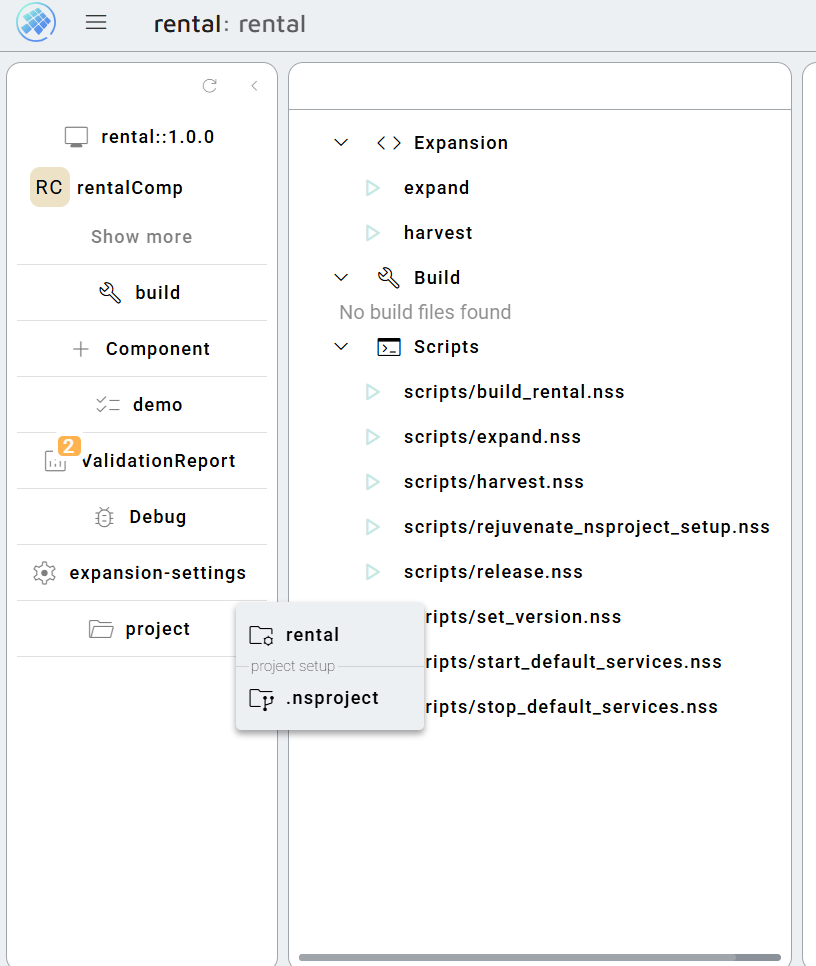
When multiple expansions exist within your project, it is possible to switch between them. After opening a project,
the left navigation bar shows a tab project. This allows you to switch to another expansion.